
Eco Planeta IQ for Rental Customers
Thank you for renting with Eco Planeta. The following instructions will show you how to use Eco Planeta IQ during your rental. Please let us know if you have questions.
Each Eco Planeta vehicle is connected to our Eco Planeta IQ app. No need anymore for physical keys, just use your phone as a digital key to lock and unlock your vehicle instead.
The app helps you easily and securely store one or more digital access keys in your digital garage.
And what if somebody else needs access to your vehicle? No problem, just share a digital key with them via the app and in seconds they can unlock and lock the vehicle. No more lost keys or physical handoffs!
And finally, with one-click you will always know where your vehicle is located.
Create user account
Section titled “Create user account”All clients that want to drive an Eco Planeta golf cart should download the Eco Planeta IQ app and create an account. It is not possible to drive a golf cart without the app, we don’t use physical keys anymore.
Download the Eco Planeta IQ from the Apple App store or the Google Play store.
- Open the app after download and register your email and create your password.
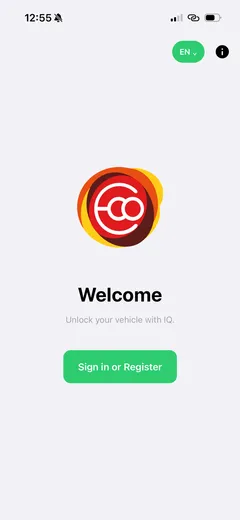
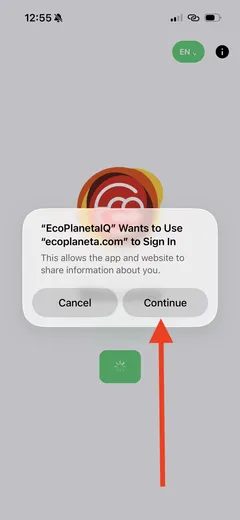
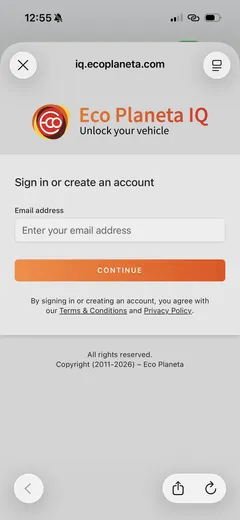
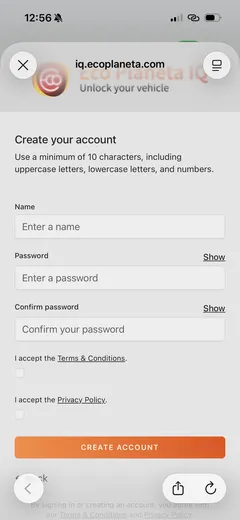
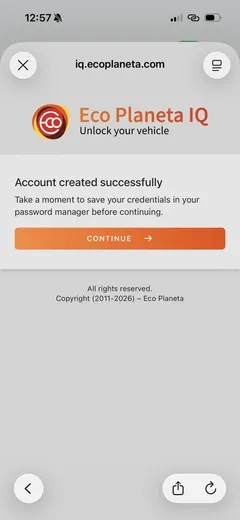
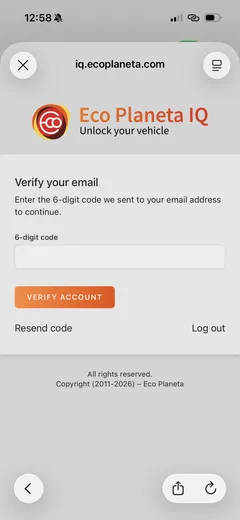
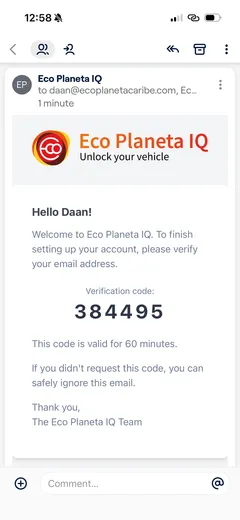
- After you have added your email account and created your password, you need to validate your email by entering a verification code sent to your registered email. If you did not receive the email, you can click on ‘resend code.’
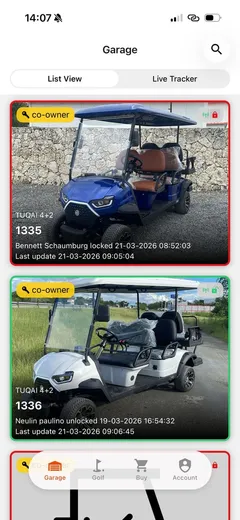
- Your garage will show a demo vehicle, if there are no vehicles shared with you.
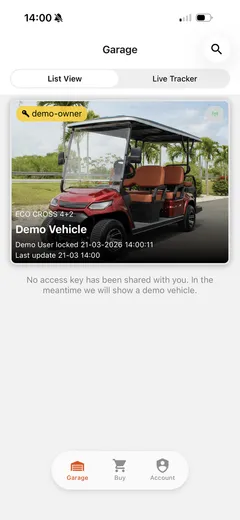
If somebody has shared vehicles with you, then you don’t see a demo vehicle, but one or more vehicles with different names.
Persistent Login
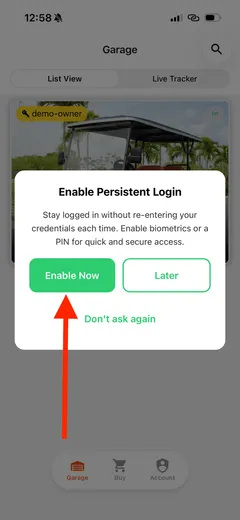
Section titled “Persistent Login”After you validated your email and you logged in for the first time you are requested to configure persistent login. If you configure this you don’t need to use your login credentials every time you login. We recommend you do this for convenience.
- Click on Enable Now.
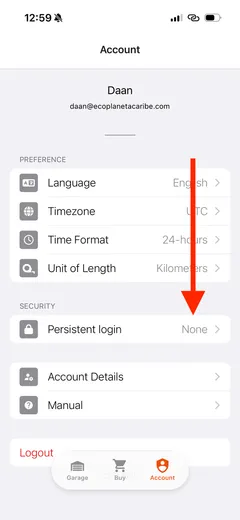
- Click on Persistent Login.
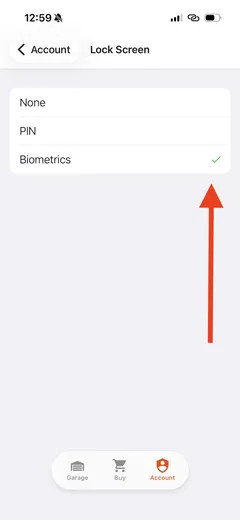
- Select Pin or Biometrics (Face ID or Fingerprint depending on smartphone). And you are done!
Create access keys
Section titled “Create access keys”If you rent one or more golf carts from Eco Planeta you will receive a Renter Key. With this type of key you have the ability to share Driver Keys with the rest of your family and/or friends.
Please make sure that your friends and/or family have created a user account, before sharing keys with them.
How do you know which key you have? In the left top corner you see the type of key. In this example the user has a renter key, so you can create Driver keys for other users.
To create a new access key click on the vehicle. Then in the top right hand corner you can see the button for key creation. Click on it.
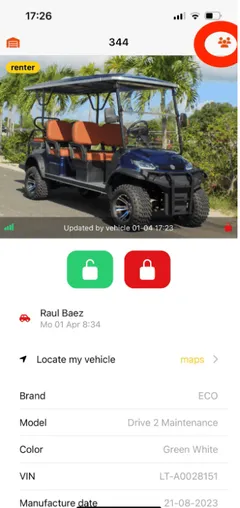
On this page you can see who has a key. If no keys are shown, nobody else has a key. In the top right hand corner you click to start creating a new key.
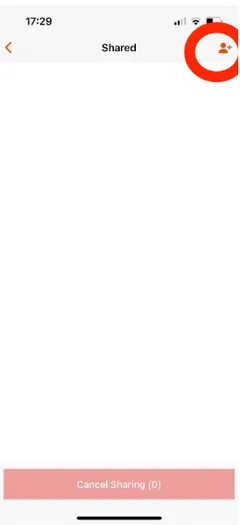
Then fill out the email address of the person you want to share an access key with.
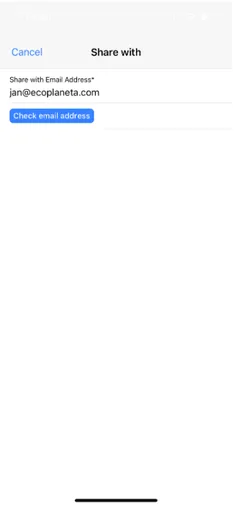
After that you can select the type of key and choose if you want to create a permanent key (that you key manually revoke in the future) or you can create a key that gets automatically revoked once the end time end date is reached.
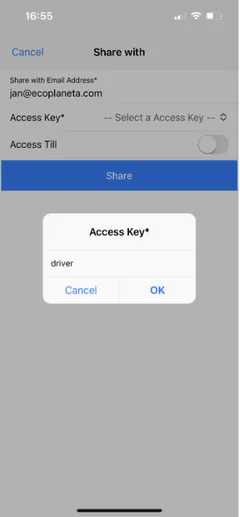
If you are done with your selection click on Share and you have created a new key!
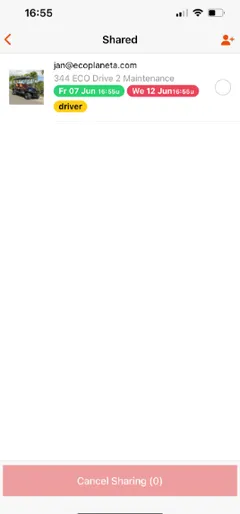
The other user will see the vehicle in their garage. Or if they don’t have an Eco Planeta IQ account they will receive an email to first create an account. When done, this user will also see the vehicle in his garage.
Cancel Shared Keys
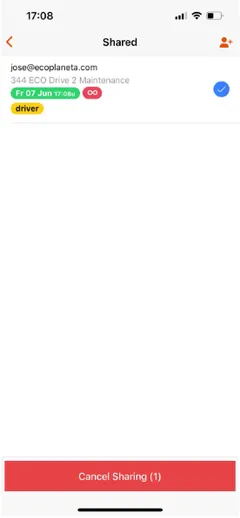
Section titled “Cancel Shared Keys”If you want to revoke a key select the user in the shared overview and click sharing.
How to Unlock and Lock Vehicle
Section titled “How to Unlock and Lock Vehicle”Select the vehicle in your garage that you want use. Click on green for Unlock and red for Lock.
If you have any other questions please send an email to info@ecoplaneta.com
Still need help? Email info@ecoplaneta.com or visit ecoplaneta.com.
Privacy policy