
How to add an image to your vehicle?
Customize how your vehicle is show on the Eco Planeta IQ platform by adding your own images to replace the stock images.
The images in the Garage Page and the Vehicle Information Page.
The owner can add images via the webapp and via the mobile app.
Webapp
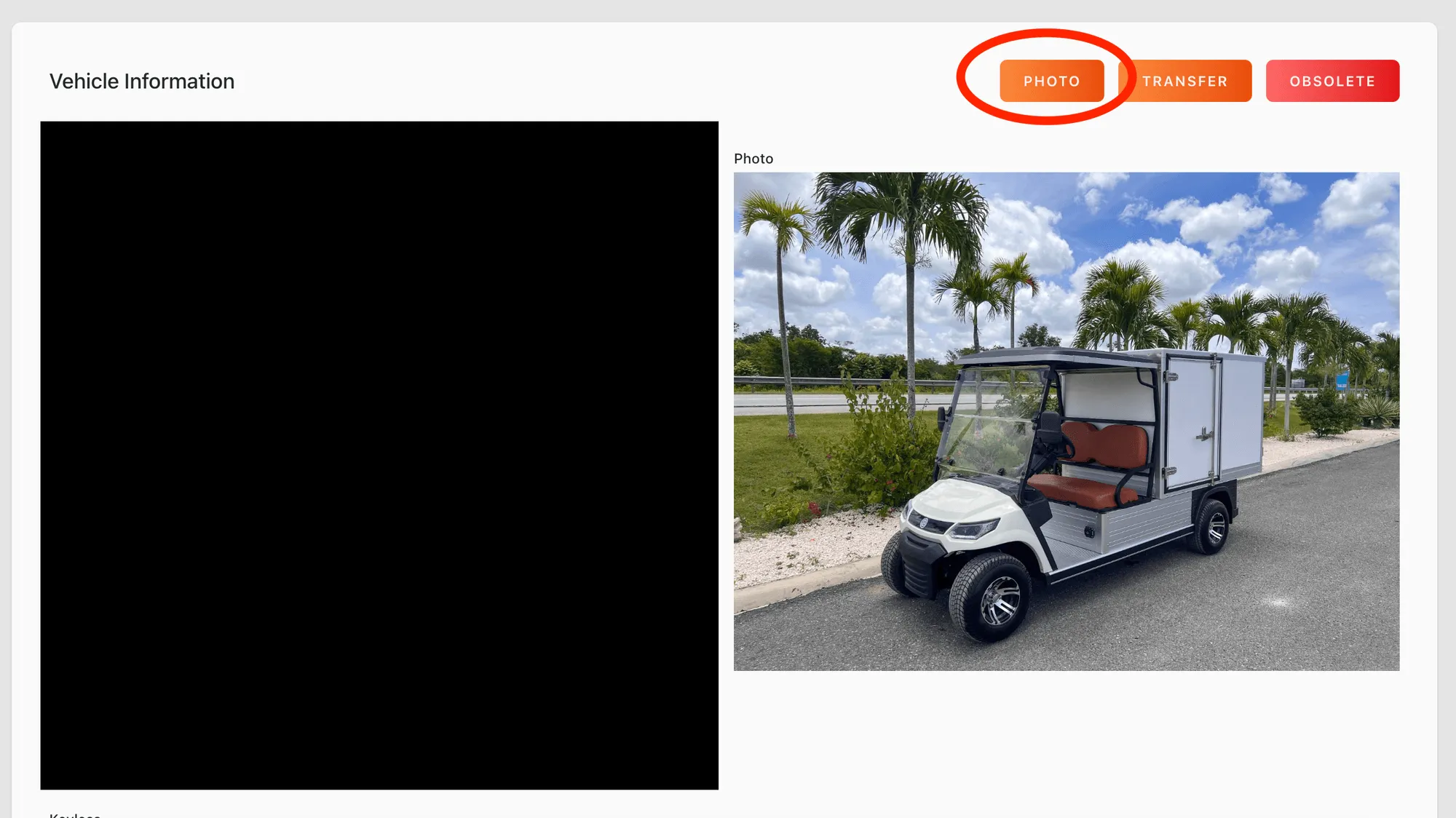
Section titled “Webapp”Garage > Vehicle Information Page > Photo
Add image
Section titled “Add image”Step 1: Click Photo to upload Image from your computer.
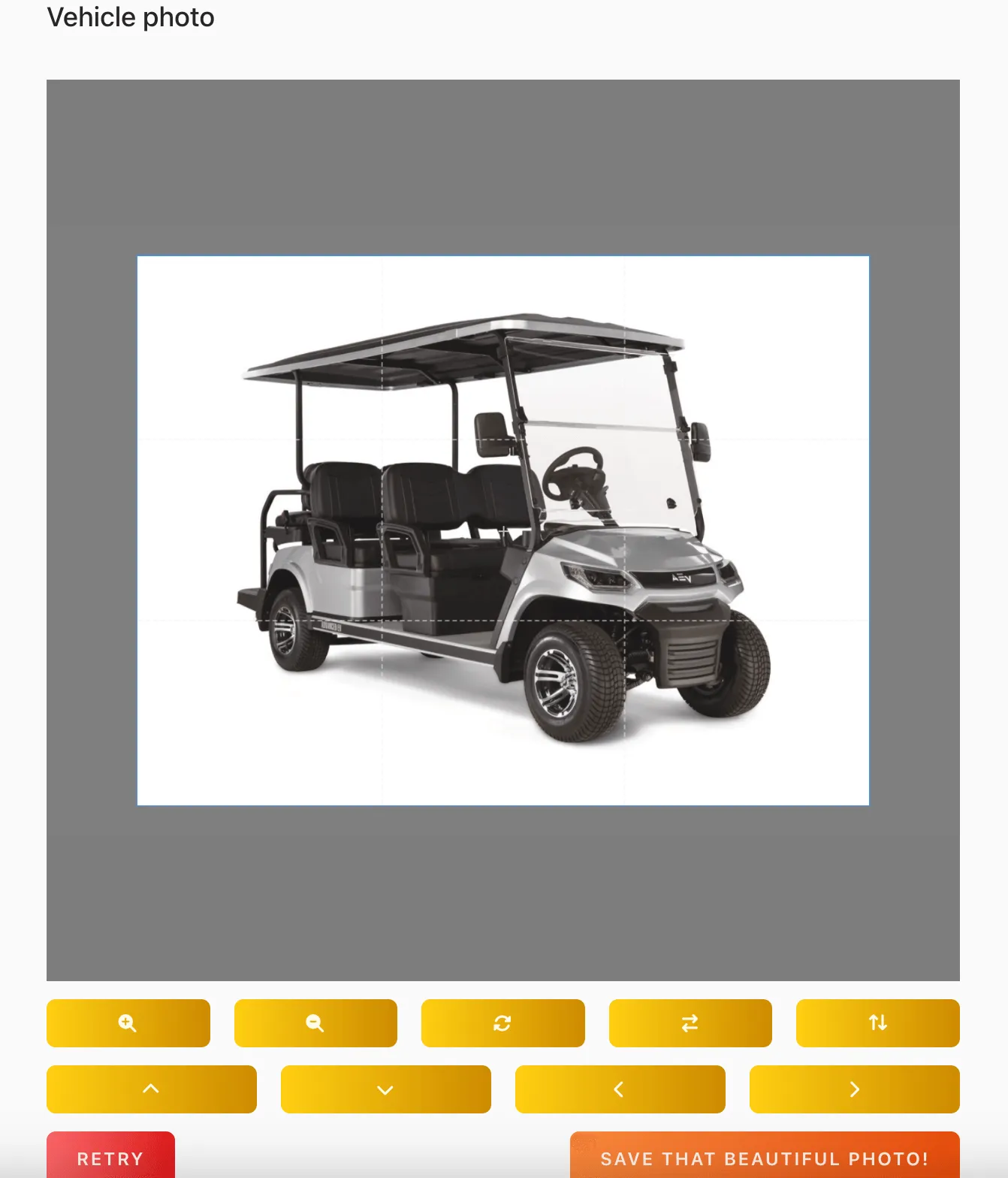
Step 2:
Edit your image via the image tools. you can zoom in, zoom out, mirror and rotate the image as you like. After you are done you can save the image.
Delete Image
Section titled “Delete Image”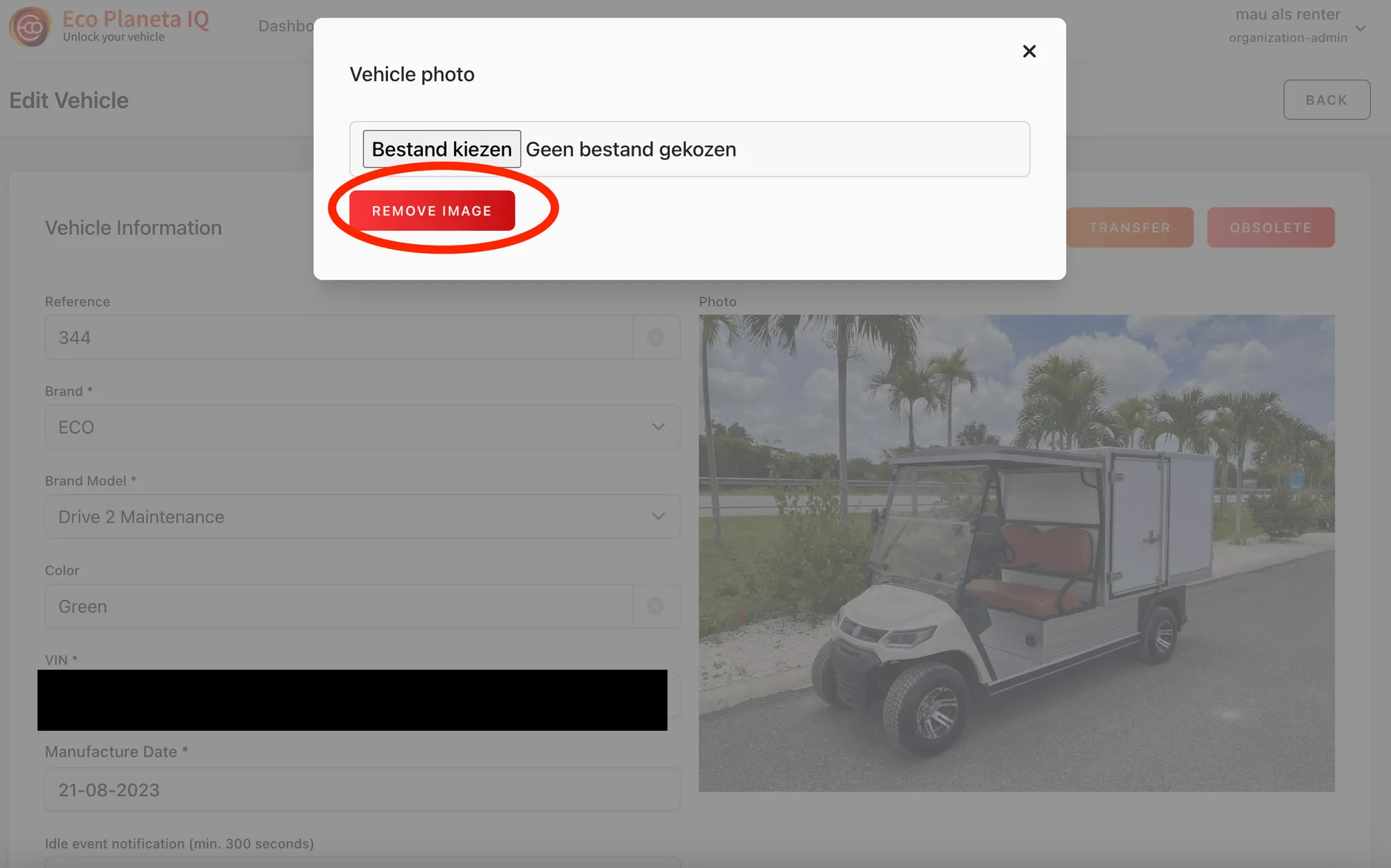
Click on the image button on the upper right side of the Vehicle Information Page and than click remove image.
Mobile App
Section titled “Mobile App”If you are owner of the vehicle you can add and edit images.
Add Image
Section titled “Add Image”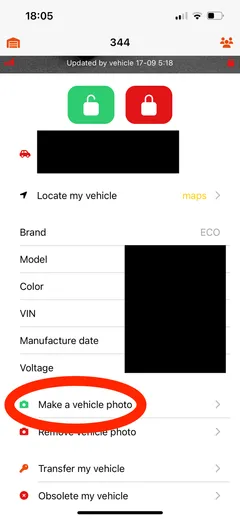
Click on the button Make a Vehicle Photo below on the Vehicle Information Page.
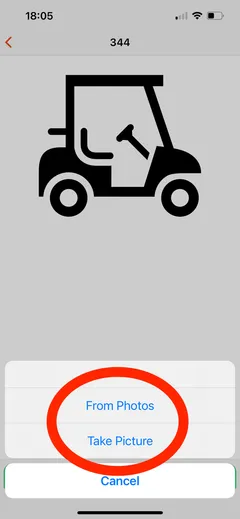
You will get a option to add an image from your photo library or you can take a picture.
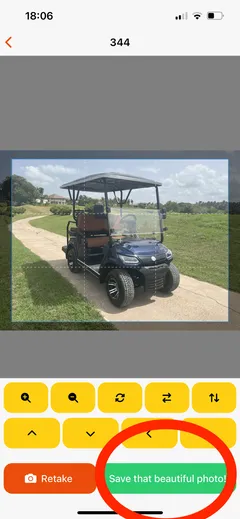
After you are done adding your picture or taking your picture, you can edit the picture before saving it. And if you are not happy with the picture you took, you can click on retake.
Delete Image
Section titled “Delete Image”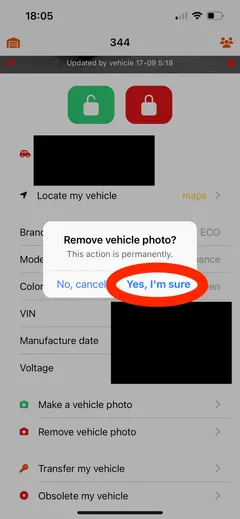
If you want to remove your vehicle image, click on the remove vehicle photo button. Afterwards a Stock photo will be shown, until you add your own image again.
Still need help? Email info@ecoplaneta.com or visit ecoplaneta.com.
Privacy policy