
How to create a User Account
Please note: this instruction for regular user accounts, if you need an organization account or organization user account, you need to reach out to Eco Planeta.
Download the Eco Planeta IQ from the Apple App store or the Google Play store.
- Open the app after download and register your email and create your password.
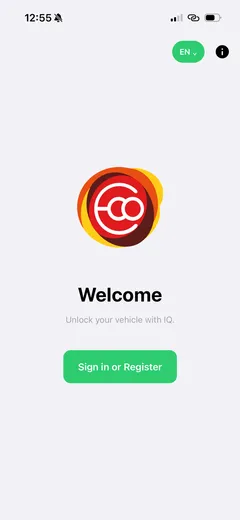
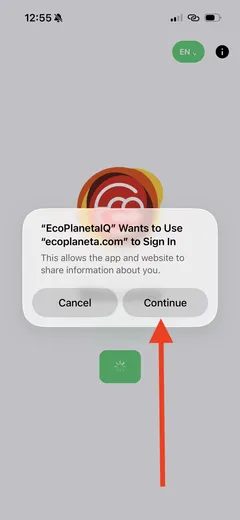
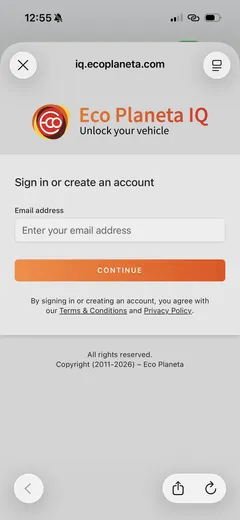
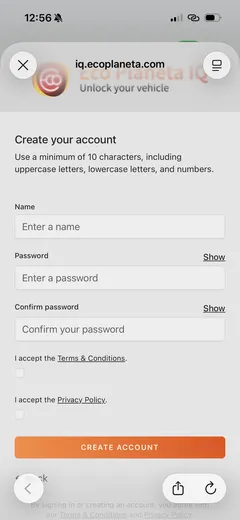
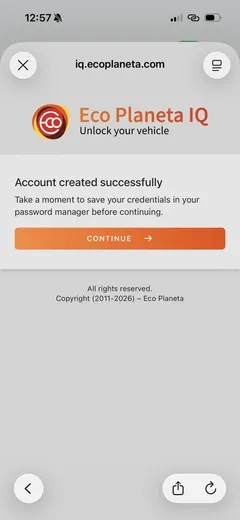
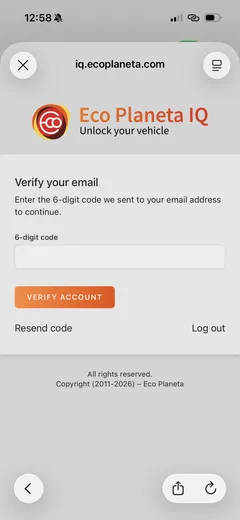
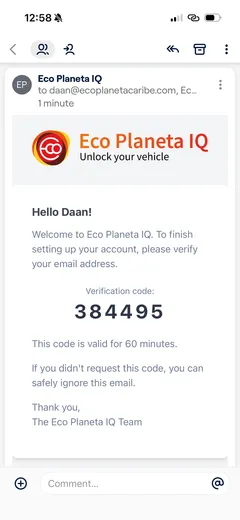
- After you have added your email account and created your password, you need to validate your email by entering a verification code sent to your registered email. If you did not receive the email, you can click on ‘resend code.’
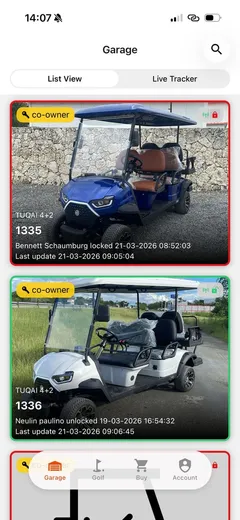
- Your garage will show a demo vehicle, if there are no vehicles shared with you.
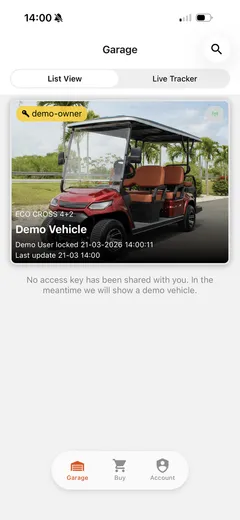
If somebody has shared vehicles with you, then you don’t see a demo vehicle, but one or more vehicles with different names.
Persistent Login
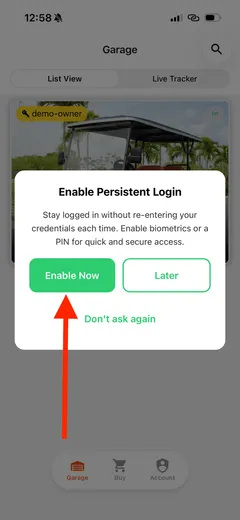
Section titled “Persistent Login”After you validated your email and you logged in for the first time you are requested to configure persistent login. If you configure this you don’t need to use your login credentials every time you login. We recommend you do this for convenience.
- Click on Enable Now.
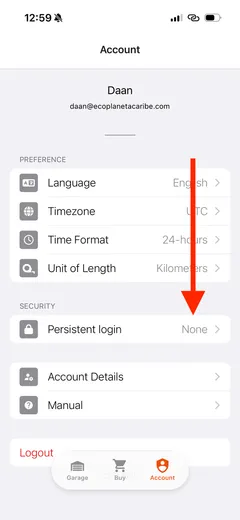
- Click on Persistent Login.
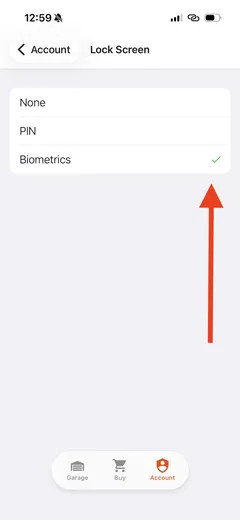
- Select Pin or Biometrics (Face ID or Fingerprint depending on smartphone). And you are done!
Still need help? Email info@ecoplaneta.com or visit ecoplaneta.com.
Privacy policy